Example 406: 3D Polygon Data
Pe3do3D Scientific Objectadvanced
3D Polygon Data
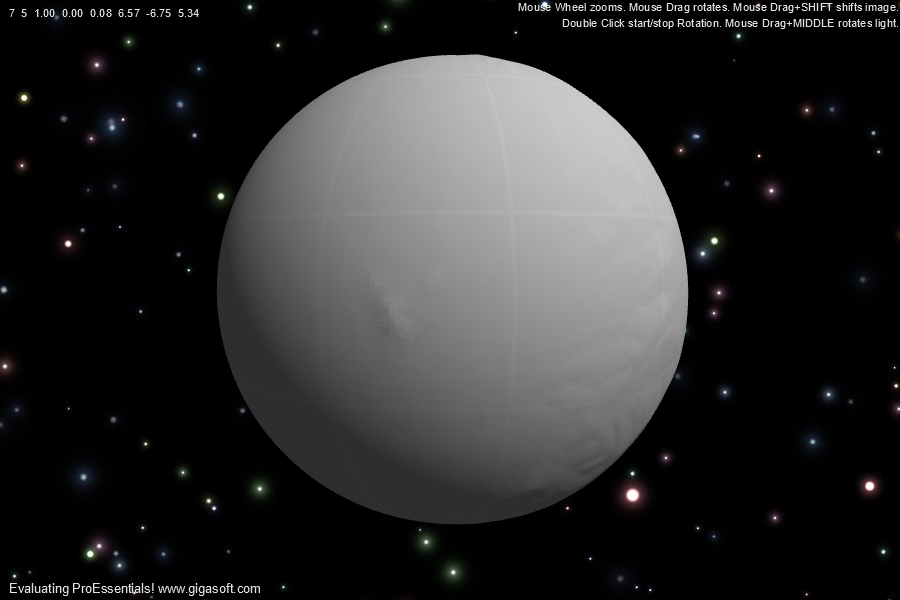
Form6.cs
1//! Double Click to start and stop Auto Rotation. //2 3//! Left click and drag to rotate. Also Hold shift to translate. //4//! Mouse Wheel zooms in/out.5//! Middle Button hold down while drag rotates light. //6//! Right click to show popup menu. //7 8Pe3do1.PeFunction.Reset();9Pe3do1.PeUserInterface.Dialog.ModelessAutoClose = true;10 11Pe3do1.PePlot.Option.DxZoomMax = 4F; // v10 New properties to control max and min mousewheel zoom12Pe3do1.PePlot.Option.DxZoomMin = -2F;13 14Pe3do1.PePlot.Option.DxViewportPanFactor = 2.0F; // v10 New properties to control shift/drag and mousewheel sensitivity15Pe3do1.PeUserInterface.Scrollbar.MouseWheelZoomFactor = 3.75F;16 17// Enable smooth rotating and zooming //18Pe3do1.PeUserInterface.Scrollbar.ScrollSmoothness = 4;19Pe3do1.PeUserInterface.Scrollbar.MouseWheelZoomSmoothness = 4;20Pe3do1.PeUserInterface.Scrollbar.PinchZoomSmoothness = 2;21 22Pe3do1.PePlot.PolyMode = PolyMode.PolygonData;23 24// Set Titles //25Pe3do1.PeString.MainTitle = "";26Pe3do1.PeString.SubTitle = "||Mouse Wheel zooms. Mouse Drag rotates. Mouse Drag+SHIFT shifts image. ";27Pe3do1.PeString.MultiSubTitles[0] = "||Double Click start/stop Rotation. Mouse Drag+MIDDLE rotates light. ";28Pe3do1.PeFont.Fixed = true;29 30// Hide Axes //31Pe3do1.PeGrid.Option.ShowXAxis = ShowAxis.Empty;32Pe3do1.PeGrid.Option.ShowYAxis = ShowAxis.Empty;33Pe3do1.PeGrid.Option.ShowZAxis = ShowAxis.Empty;34 35// Set camera location //36Pe3do1.PeUserInterface.Scrollbar.ViewingHeight = 5;37 38// Set Plotting Method and etc ///39Pe3do1.PePlot.Method = Gigasoft.ProEssentials.Enums.ThreeDGraphPlottingMethod.Two; //surface with shading40Pe3do1.PePlot.Allow.WireFrame = false;41 42// Do not auto fit to shape of window, keep things square //43// Keeps the sphere a sphere in 3dx44Pe3do1.PePlot.Option.DxFitControlShape = false;45 46// Set a light location47Pe3do1.PeFunction.SetLight(0, 1.87F, -1.92F, 1.52F);48 49// Set eye/camera distance, or Zoom amount //50Pe3do1.PePlot.Option.DxZoom = 1.0F;51 52// Set a chart translation //53Pe3do1.PePlot.Option.DxViewportX = .0F;54Pe3do1.PePlot.Option.DxViewportY = .08F;55 56// Enable DegreePrompting, to view rotation, zoom, light location to aid57// in determining different default values for such properties //58Pe3do1.PePlot.Option.DegreePrompting = true;59 60// Enable button dragging //61Pe3do1.PeUserInterface.Scrollbar.MouseDraggingX = true;62Pe3do1.PeUserInterface.Scrollbar.MouseDraggingY = true;63 64// Note RenderEngine 3DX requires setting RenderEngine before QuickStyle65Pe3do1.PeConfigure.RenderEngine = RenderEngine.Direct3D;66Pe3do1.PeColor.BitmapGradientMode = true;67Pe3do1.PeColor.QuickStyle = QuickStyle.DarkNoBorder;68 69Pe3do1.PeColor.Desk = Color.FromArgb(0, 1, 0, 0); // Empty equiv Color.Empty;70Pe3do1.PeColor.DeskBmpFilename = "starfield.jpg";71Pe3do1.PeColor.DeskBmpStyle = BitmapStyle.TiledBitBlt;72 73Pe3do1.PeConfigure.PrepareImages = true;74Pe3do1.PeUserInterface.Allow.FocalRect = false;75Pe3do1.PeConfigure.CacheBmp = true;76Pe3do1.PeUserInterface.Dialog.Style = false;77 78Int32[] pElevData = new Int32[2250000];79String filepath = null;80filepath = System.AppDomain.CurrentDomain.BaseDirectory + "\\terrain2.bin";81System.IO.FileStream fs = null;82try83{84 fs = new System.IO.FileStream(filepath, System.IO.FileMode.Open);85}86catch87{88 System.Windows.Forms.MessageBox.Show("Demo File Not Found?", "Error", System.Windows.Forms.MessageBoxButtons.OK);89 System.Windows.Forms.Application.Exit();90}91 92System.IO.BinaryReader re = new System.IO.BinaryReader(fs);93 94for (int o = 0; o < 2250000; o++)95 pElevData[o] = re.ReadInt32();96fs.Close();97 98// Code below dynamically creates polygon data to produce a sphere //99int a, b, r, n = 0, m = 0, q, tt, ph;100int i;101float radius, radius2;102 103float fInc = 1.0F;104float factor_theta = .9F; // v9.5105float factor_phi = .9F;106radius = 9;107 108tt = Convert.ToInt32((360.0 / factor_theta) - 1.0);109ph = Convert.ToInt32((360.0 / factor_phi) - 1.0);110 111float[,] pEDGEx = new float[tt + 1, ph + 1];112float[,] pEDGEy = new float[tt + 1, ph + 1];113float[,] pEDGEz = new float[tt + 1, ph + 1];114 115float theta = 0.0F;116float phi = 0.0F;117 118// Convert spherical coordinates to Cartesian //119for (a = 0; a <= tt; a++)120{121 for (b = 0; b <= ph; b++)122 {123 if (a < tt / 2)124 radius2 = radius + (((float)pElevData[(((a)) * 1500) + (b)]) * .00007F * fInc);125 else126 radius2 = radius + (((float)pElevData[(((int)tt - (a)) * 1500) + (b)]) * .00007F * fInc);127 128 pEDGEx[a, b] = (float)(radius2 * Math.Cos((3.141592 / 180.0) * theta) * Math.Sin((3.141592 / 180.0) * phi));129 pEDGEz[a, b] = (float)(radius2 * Math.Sin((3.141592 / 180.0) * theta) * Math.Sin((3.141592 / 180.0) * phi));130 pEDGEy[a, b] = (float)(radius2 * Math.Cos((3.141592 / 180.0) * phi));131 phi = phi + factor_phi;132 }133 theta = theta + factor_theta;134 phi = 0;135}136 137// The original quad sphere built ((ph+1)*(tt+1))/2 quads.138// Each quad = 2 triangles, so we need twice as many TriangleData.139int nQuads = ((ph + 1) * (tt + 1)) / 2; // same cell count as the quad version140int nTris = nQuads * 2; // two triangles per cell141 142Gigasoft.ProEssentials.Structs.TriangleData[] Tri = new Gigasoft.ProEssentials.Structs.TriangleData[nTris];143 144// Quad corner layout (unchanged from the quad version using legacy PolygonData):145//146// C0(n,m)------C3(n,r)147// | |148// | |149// C1(q,m)------C2(q,r)150//151// We compute the same four corners, then split:152// triangle A = C0, C1, C2153// triangle B = C0, C2, C3154// which keeps the original winding (face direction) intact.155 156for (i = 0; i < nQuads; i++)157{158 // ---- compute the four corner coordinates exactly as the quad code did ----159 float c0x = pEDGEx[n, m], c0y = pEDGEy[n, m], c0z = pEDGEz[n, m]; // (n, m)160 161 q = n + 1; // Prepare for next theta point162 r = m + 1; // Prepare for next phi point163 164 // The end of the row is the beginning of the row165 if (n > tt - 1)166 q = 0;167 168 float c1x = pEDGEx[q, m], c1y = pEDGEy[q, m], c1z = pEDGEz[q, m]; // (q, m)169 170 if (q == 0)171 n = tt;172 if (n > tt - 1)173 q = 0;174 175 float c2x = pEDGEx[q, r], c2y = pEDGEy[q, r], c2z = pEDGEz[q, r]; // (q, r)176 177 if (q == 0)178 n = tt;179 180 float c3x = pEDGEx[n, r], c3y = pEDGEy[n, r], c3z = pEDGEz[n, r]; // (n, r)181 182 // Set the polygons color, with a bit of logic to produce longitude and latitude lines183 //! Note, ProEssentials DLL internally stores colors in BGR order (the reverse of .NET),184 //! So anytime color is sent direct to DLL from .NET, color order must be reversed.185 double di = (double)i % 40.0F;186 double dm = (double)m % 40.0F;187 int iCol;188 if (di < .025F || dm < .025F)189 {190 Color c = Color.FromArgb(255, 159, 159, 159);191 iCol = (c.A << 24) | (c.R << 16) | (c.G << 8) | c.B;192 }193 else194 {195 Color c = Color.FromArgb(255, 155, 155, 155);196 iCol = (c.A << 24) | (c.R << 16) | (c.G << 8) | c.B;197 }198 199 // ---- emit the two triangles for this cell ----200 int t = i * 2;201 202 // Triangle A: C0, C1, C2203 Tri[t].Vertice0X = c0x; Tri[t].Vertice0Y = c0y; Tri[t].Vertice0Z = c0z;204 Tri[t].Vertice1X = c1x; Tri[t].Vertice1Y = c1y; Tri[t].Vertice1Z = c1z;205 Tri[t].Vertice2X = c2x; Tri[t].Vertice2Y = c2y; Tri[t].Vertice2Z = c2z;206 Tri[t].PolyColor = iCol;207 208 // Triangle B: C0, C2, C3209 Tri[t + 1].Vertice0X = c0x; Tri[t + 1].Vertice0Y = c0y; Tri[t + 1].Vertice0Z = c0z;210 Tri[t + 1].Vertice1X = c2x; Tri[t + 1].Vertice1Y = c2y; Tri[t + 1].Vertice1Z = c2z;211 Tri[t + 1].Vertice2X = c3x; Tri[t + 1].Vertice2Y = c3y; Tri[t + 1].Vertice2Z = c3z;212 Tri[t + 1].PolyColor = iCol;213 214 // This establishes when the next row and column of points is increased215 if ((i + 1) % (ph + 1) == 0 && (i != 0))216 m = m + 1; // Step to the next phi(row)217 218 if ((i + 1) % (tt + 1) != 0 || (i == 0))219 n = n + 1; // Step to the next theta (column)220 else221 n = 0; // If you loop start at the beginning222}223 224// Set the triangles via PEvset. Count is now nTris, not the quad count.225// TriangleData is ComputeShader compatible (PolygonData is not).226Gigasoft.ProEssentials.Api.PEvsetW(Pe3do1.PeSpecial.HObject, Gigasoft.ProEssentials.DllProperties.TriangleData, Tri, nTris);227 228// Set various export defaults //229Pe3do1.PeSpecial.DpiX = 600;230Pe3do1.PeSpecial.DpiY = 600;231 232// default export setting //233Pe3do1.PeUserInterface.Dialog.ExportSizeDef = ExportSizeDef.NoSizeOrPixel;234Pe3do1.PeUserInterface.Dialog.ExportTypeDef = ExportTypeDef.Png;235Pe3do1.PeUserInterface.Dialog.ExportDestDef = ExportDestDef.Clipboard;236Pe3do1.PeUserInterface.Dialog.ExportUnitXDef = "1280";237Pe3do1.PeUserInterface.Dialog.ExportUnitYDef = "768";238Pe3do1.PeUserInterface.Dialog.ExportImageDpi = 300;239Pe3do1.PeUserInterface.Allow.TextExport = false;240Pe3do1.PeUserInterface.Dialog.AllowEmfExport = false;241Pe3do1.PeUserInterface.Dialog.AllowWmfExport = false;242 243Pe3do1.PeUserInterface.Menu.GridLine = MenuControl.Hide;244Pe3do1.PeUserInterface.Menu.ShowWireFrame = MenuControl.Hide;245Pe3do1.PeUserInterface.Menu.PlotMethod = MenuControl.Hide;246 247// Note RenderEngine must be set before enabling ComputeShader //248Pe3do1.PeConfigure.RenderEngine = RenderEngine.Direct3D;249Pe3do1.PeData.ComputeShader = true; // TriangleData enables ComputeShader rendering250 251Pe3do1.PeFunction.Force3dxNewColors = true;252Pe3do1.PeFunction.Force3dxVerticeRebuild = true;253Pe3do1.PeFunction.Force3dxAnnotVerticeRebuild = true;254 255Pe3do1.PeFunction.ReinitializeResetImage();256Pe3do1.Invalidate();257Pe3do1.Refresh();Tip: Uses property syntax like
Pego1.PeData.Y[s, p]Click underlined properties to view documentation